PostgreSQL
This functionality relies on the Database Tools and SQL plugin, which is bundled and enabled in IntelliJ IDEA by default. If the relevant features aren’t available, make sure that you didn’t disable the plugin.
The Database Tools and SQL plugin is not available in IntelliJ IDEA Community Edition.
- Press Ctrl+Alt+S to open the IDE settings and then select Plugins .
- Open the Installed tab, find the Database Tools and SQL plugin, and select the checkbox next to the plugin name.
Official documentation and software
- For full information about PostgreSQL, refer to the official documentation.
- To download PostgreSQL database software, refer to the official software downloads.
This topic presents a general procedure on how you can create a data source for the connection to your PostgreSQL database in IntelliJ IDEA, and run a test connection. It is assumed that you already have the necessary prerequisites and the database is up and running. For example, if you want to run a database on your machine and connect to that database, the corresponding DBMS software must be installed on the machine first.
Connect to a PostgreSQL database

- To connect to the database, create a data source that will store your connection details. You can do this using one of the following ways:
- In the main menu, go to File | New | Data Source and select PostgreSQL .
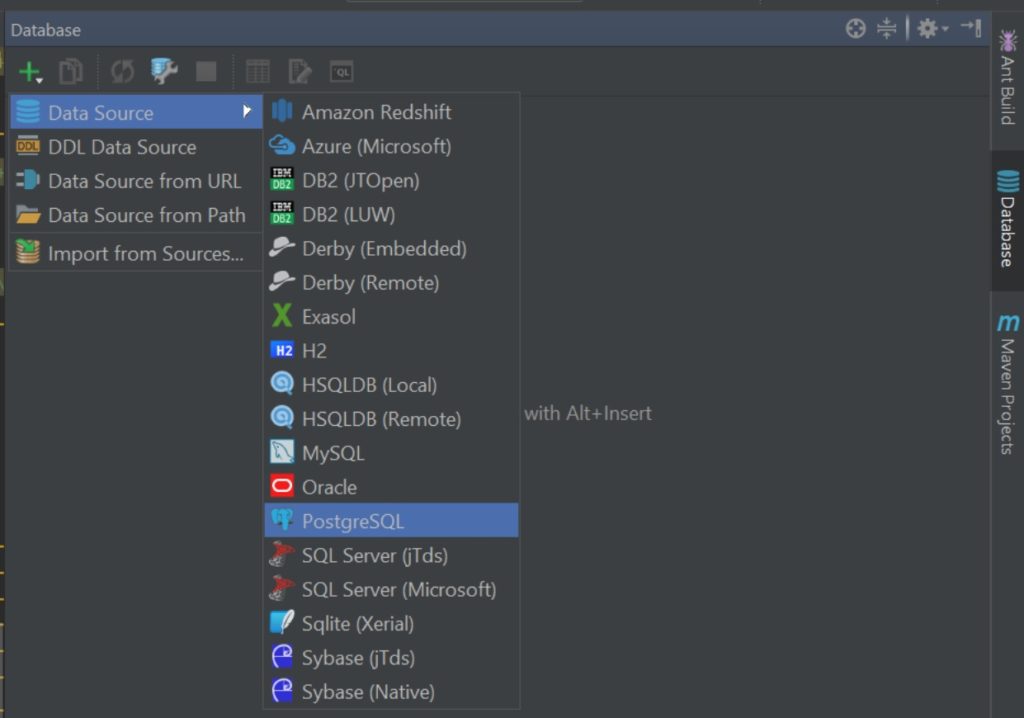
- In the Database tool window ( View | Tool Windows | Database ) , click the New icon () in the toolbar. Navigate to Data Source and select PostgreSQL .
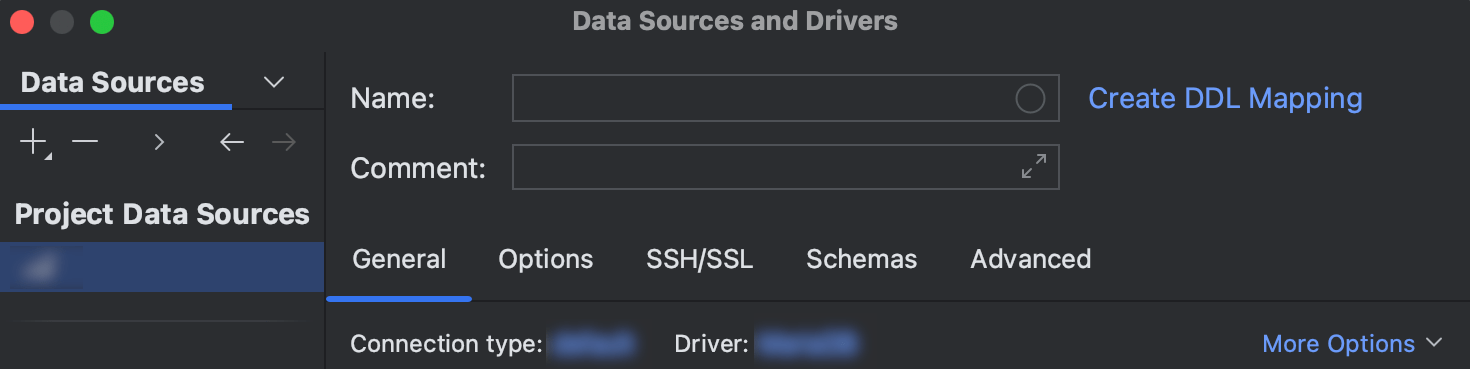
- In the General tab of Data Sources and Drivers dialog right pane, specify the driver and connection type.
- In the Driver list, leave the default driver option, unless another driver is required for your connection.
- From the Connection type list, select the connection type depending on the connection details that you have:
- default : connect by using Host , Port , Database , and URL .
- URL only : connect by using only the URL .
For the URL only connection type, the JDBC URL that you enter is used as is.
For the other connection types, the JDBC URL is broken down into connection details. You can either specify them separately and use the automatically generated URL, or you can enter the URL directly in the corresponding field.
 You can also use your drivers for the database instead of the provided ones. For more information about connecting to a database with your driver, refer to Add a user driver to an existing connection. If there is no Download missing driver files link, then you already have the required drivers.
- In the Host field, type your server address.
- In the Port field, type the port of PostgreSQL. The default port is 5432. Real port numbers might be different on your system. Verify that you use a correct port number with your database administrator, server settings, or hosting provider.
- From the Authentication list, select the authentication method that you want to use to authenticate the connection. The following options are available:
- pgpass : by using the pgpass file. You can store this file in the user’s home directory. You can read more about the password file and its location in The Password File at postgresql.org.
- User & Password : by using your login and password.
- No auth : authentication is not required.
- In the User and Password fields, type your user credentials. To use no password, leave the Password field empty. To delete a once entered password, right-click the Password field and select Set Empty .
- In the Database field, type the database name to which you want to connect.
- In the URL field, IntelliJ IDEA generates the JDBC URL automatically using the values of other connection settings. If you need to use a JDBC URL with certain additional settings, paste it in the URL field. The general URL to use is as follows:
- Format: jdbc:postgresql://:/
- Example: jdbc:postgresql://127.0.0.1:5432/myDatabase
For more information about the URL format, refer to the PostgreSQL official documentation.

- From the Authentication list, select the authentication method that you want to use to authenticate the connection. The following options are available:
- User & Password : by using your login and password.
- No auth : authentication is not required.
- In the User and Password fields, type your user credentials. To use no password, leave the Password field empty. To delete a once entered password, right-click the Password field and select Set Empty .
- In the URL field, IntelliJ IDEA generates the JDBC URL automatically using the values of other connection settings. If you need to use a JDBC URL with certain additional settings, paste it in the URL field. For more information about the URL format, refer to the PostgreSQL official documentation.
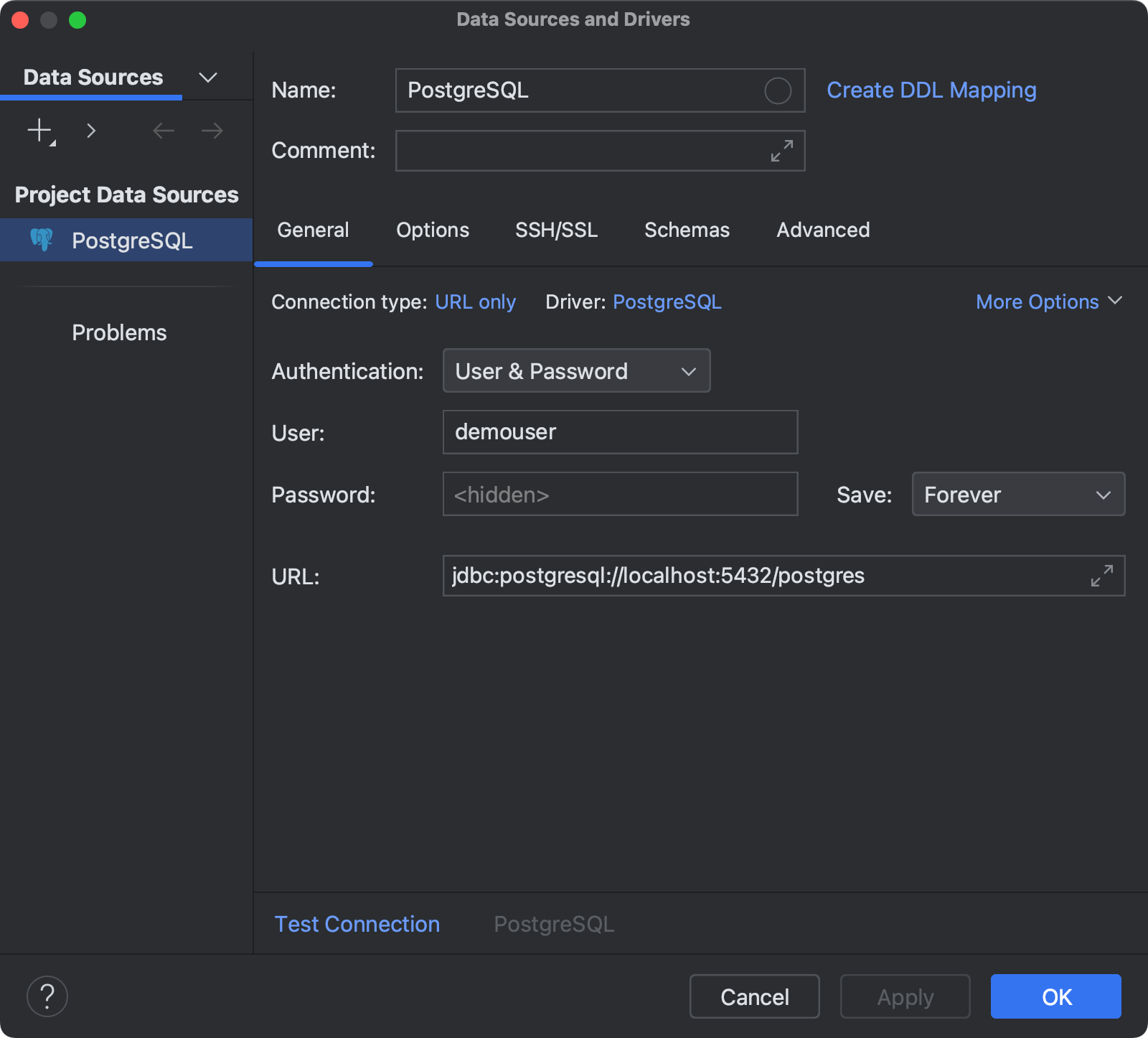
For the reference information about connection settings and properties on the General and other tabs of Data Sources and Drivers dialog ( Shift+Enter ) , see Connection settings and DBMS-specific properties.
 In case of any connection issues, refer to the Cannot connect to a database page.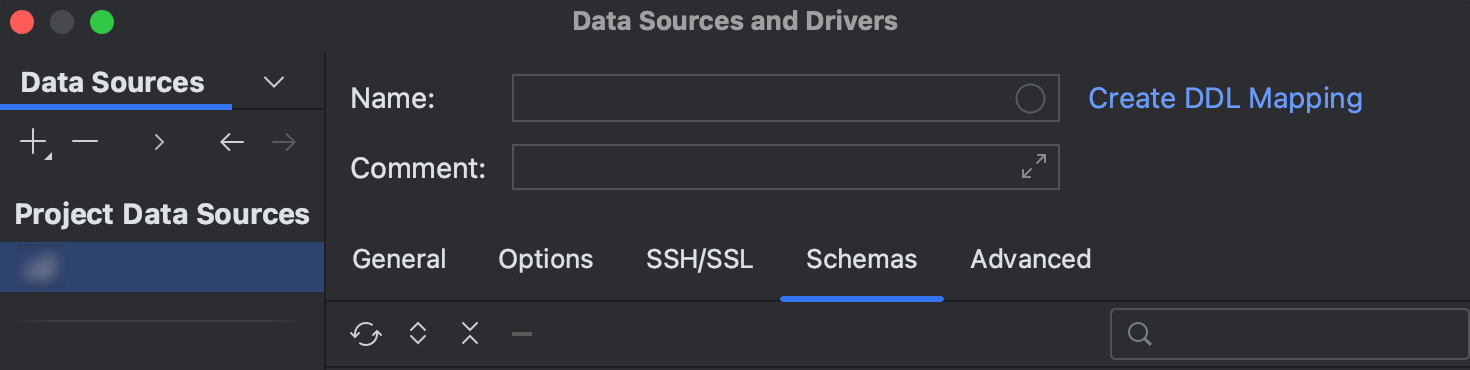
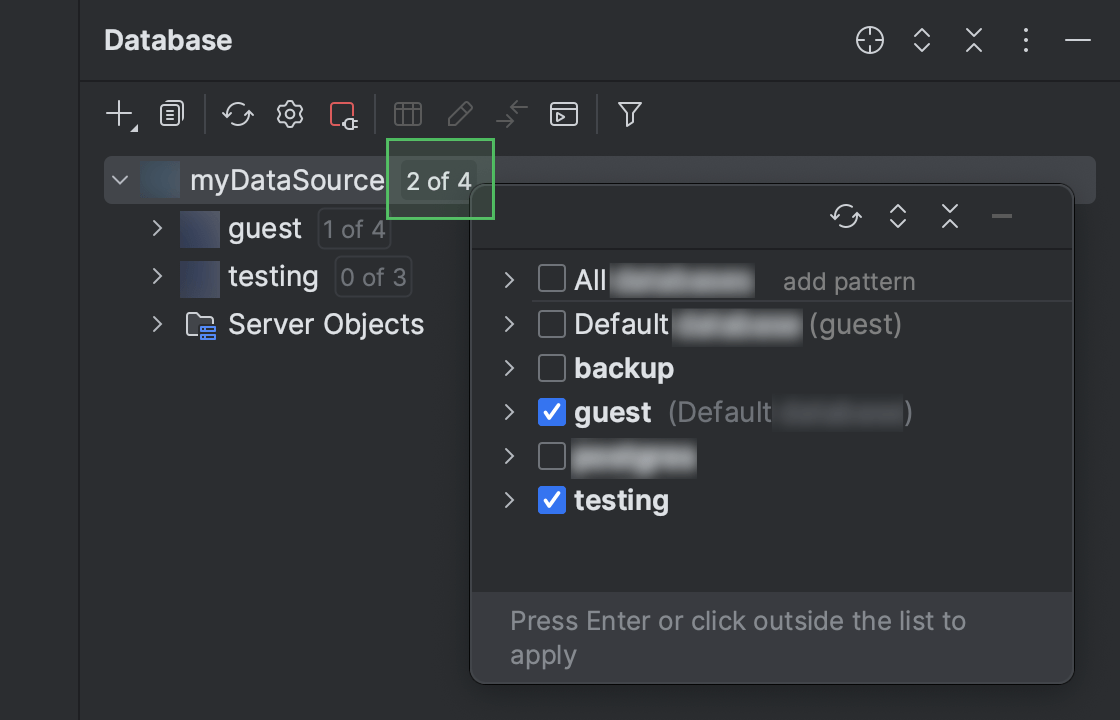
- For more information about the Database tool window, see the corresponding reference topic. To see more databases and schemas under your new data source node, click the N of M button and select the ones you need. IntelliJ IDEA will introspect and show them.
- For more information about working with database objects in IntelliJ IDEA, refer to Database objects.
- To write and run queries, open the default query console by clicking the data source and pressing F4 .
- To view and edit data of a database object, open Data editor and viewer by double-clicking the object.
Connection settings and DBMS-specific properties
Connection settings
For the reference information about connection settings (for example, Host , Port , and so on) on the General and other tabs of Data Sources and Drivers dialog ( Shift+Enter ) , see Data Sources.
How to add a postgresql jdbc driver to intellij?

I’m trying to add a driver, and this page tells me to open View | Tool Windows | Database https://www.jetbrains.com/help/idea/managing-data-sources.html But there is no such tool window. See picture I tried Alt-3 since that option is missing in the menu, but nothing happens. How do I add the postgresql driver from Intellij? I already have the mysql driver. IntelliJ version: IntelliJ IDA 2020.2.1 Community edition
asked Sep 3, 2020 at 12:37
30.8k 18 18 gold badges 58 58 silver badges 101 101 bronze badges
What is your IntelliJ version ?
Sep 3, 2020 at 12:42
@BenjaminD Forgot to mention that. Edited the question.
Sep 3, 2020 at 12:43
2 Answers 2
As you can see here, the Community edition does not include the database tool.
You’ll need the Ultimate edition for that.
Then, if you want to just add the library to your project, you can select the project root in IntelliJ, hit F4. Go to Project settings ==> Libraries
Hit the + icon and choose Java.
Then, browse to your driver jar file and select it.
answered Sep 3, 2020 at 12:46
514 3 3 silver badges 13 13 bronze badges
Thanks. Do you know what I could do instead?
Sep 3, 2020 at 12:47
What is your need exactly ? If you need the database tool, you should get the Ultimate edition. If not, you can use various other tools.
Sep 3, 2020 at 12:48
What I need is to install the postgresql jdbc driver
Sep 3, 2020 at 12:50
There are different things. In Intellij, the driver allows you to acces the database and to query it within your IDE. For what I understand, this is not your need. If you need to add the jdbc driver to your project in order to use it, then you must add the jar to your project manually or use a dependancy manager like Gradle or Maven.
Sep 3, 2020 at 12:53
TBH, I’m not completely sure. I’m not experienced with Java. I have a project. In that, I have a few classes that are supposed to access a postgres database on localhost. Now I want to use JUnit to create a test in which the database is accessed
Как подключить postgresql intellij idea
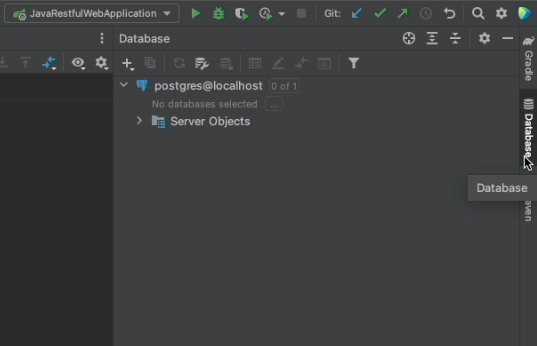
Use ⇧⇧ (macOS) / Shift+Shift (Windows/Linux), to bring up the Search Everywhere dialog. You can now search for Database to open the Database tool window which helps you to connect to multiple databases and DDL data sources.
You click on the + (macOS) / New (Windows/Linux). Select Data Source then Postgres as the data source type. Customize the name of the data source, connection details, then click on the Test link to ensure everything is ok.
Once everything is done, a Console tab will appear and you can now query the database from the IDE. You can also explore it from the Database tool window, and select which parts to hide or show from it.
Note: You may need to download a database driver for the IDE first. If you see a Download driver link, you’ll need to click on that before you can connect to the database.
Alternately, you can open Database tool window from the Sidebar of the IDE:
Intellij Idea connect to PostgreSQL

Connecting IntelliJ IDEA to a PostgreSQL database is crucial for efficient database management. This article provides a step-by-step guide on establishing the connection, including downloading the PostgreSQL database connection driver and configuring the connection settings within IntelliJ IDEA. By following these instructions, you can seamlessly integrate your database operations into your development environment, enhancing productivity and streamlining your workflow.
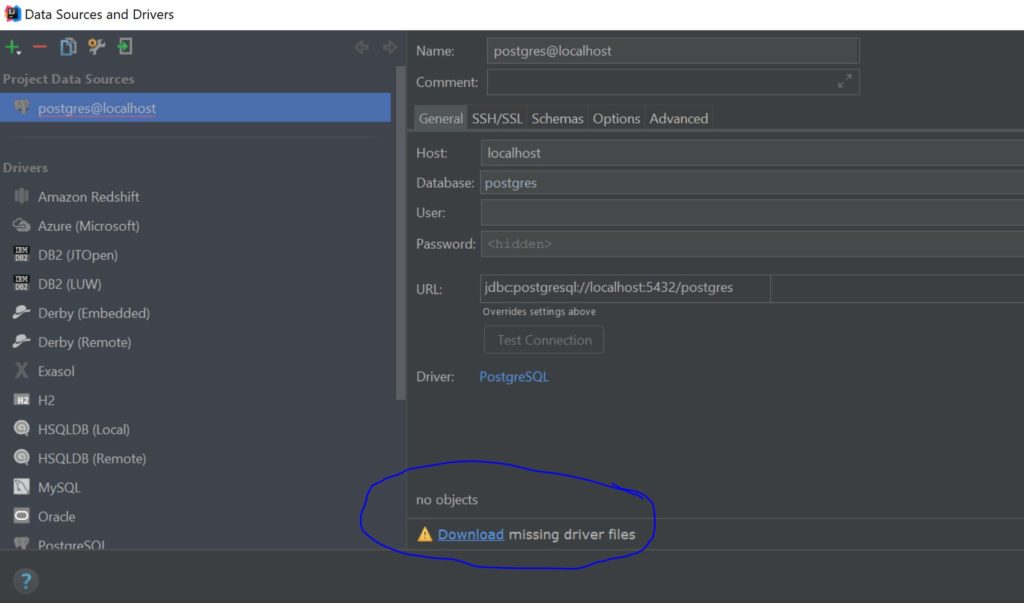
Download the database connection driver from the link in Intellij Idea.
After completing these steps, IntelliJ IDEA will be connected to your PostgreSQL database, and you can start working with it in the IDE. The database connection will be available in the “Database” tool window, allowing you to view tables, execute queries, and perform other database-related tasks directly from IntelliJ IDEA.